UV Package Manager: A Simplified Guide
The Simplified Guide to UV Package Manager
UV (pronounced “ultraviolet”) is an extremely fast Python package installer and resolver, designed to be a drop-in replacement for pip/pip-tools with significant performance improvements. This guide covers everything you need to know about using UV in your Python projects.
If you’re looking for a simplified explanation of the UV package manager, check out this helpful guide: UV Package Manager — A Simplified Guide
Press enter or click to view image in full size
The Ultimate Guide to UV Package Manager
· Table of Contents
· Installation
· Project Initialization
· Project Structure
· Initialization Options
· Package Management
· Adding Packages
· Removing Packages
· Dependency Resolution
· Dependency Tree
· Virtual Environment Management
· Syncing Dependencies
· Running Scripts
· Working with pip
· UV Pip Commands
· Converting pip Projects
· Tool Management
· Installing Tools
· Running Tools
· Managing Tools
· UV Shortcuts
· Advanced Usage
· Configuration
· CI/CD Integration
· Performance Comparisons
· Troubleshooting
· Issue: Package not found
· Issue: Permission errors
· Issue: Lock file conflicts
· Issue: Network problems
· FAQs
To install UV globally on your system:
# Using pip
pip install uv
# Using pipx (recommended for CLI tools)
pipx install uv# Using homebrew (macOS)
brew install uvInitialize a new Python project with UV:
uv init my_newappWhen you initialize a new project with uv init, the following folder structure is created:
my_newapp/
├── .git/                    # Git repository
├── .gitignore               # Common Python gitignore patterns
├── .python-version          # Python version specification
├── README.md                # Basic README file
├── main.py                  # Main Python entry point
└── pyproject.toml           # Project configuration
Let’s look at the default content of some of these files:
pyproject.toml
[project]
name = "my_newapp"
version = "0.1.0"
description = "Add your description here"
dependencies = []
readme = "README.md"
requires-python = ">= 3.8"

[build-system]
requires = ["hatchling"]
build-backend = "hatchling.build"

[tool.rye]
managed = true
dev-dependencies = []def main():
print("Hello, world!")
if __name__ == "__main__":
main().gitignore
__pycache__/
*.py[cod]
*$py.class
*.so
.Python
env/
build/
develop-eggs/
dist/
downloads/
eggs/
.eggs/
lib/
lib64/
parts/
sdist/
var/
wheels/
*.egg-info/
.installed.cfg
*.egg
.env
.venv
.uvUV offers various options when initializing a project:
# Initialize in existing directory
cd existing_directory
uv init --app

# Initialize as a distributable Python library
uv init my_library --lib

# Initialize with specific Python version
uv init my_project --python=3.11

# Initialize with git disabled
uv init my_project --no-git
After initialization, you can check the project structure:
# List all files including hidden ones
ls -la my_newapp

# View directory tree
find my_newapp -type f | sortAdd packages to your project:
# Add one or more packages
uv add flask requests

# Add a specific version
uv add "requests>=2.28.0"

# Add packages with extras
uv add "celery[redis]"

# Add development dependencies
uv add --dev pytest black mypy

# Add from requirements file
uv add -r requirements.txt
When you add packages, UV updates both the pyproject.toml and creates a uv.lock file:
Updated pyproject.toml after adding Flask and requests
[project]
name = "my_newapp"
version = "0.1.0"
description = "Add your description here"
dependencies = [
    "flask>=2.3.3",
    "requests>=2.31.0",
]
readme = "README.md"
requires-python = ">= 3.8"

[build-system]
requires = ["hatchling"]
build-backend = "hatchling.build"

[tool.rye]
managed = true
dev-dependencies = []
The uv.lock file will contain exact versions and hashes for all dependencies and sub-dependencies. This ensures reproducible builds across different environments.
Remove packages from your project:
# Remove a single package
uv remove flask

# Remove multiple packages
uv remove flask requests

# Remove a development dependency
uv remove --dev pytestUV has an extremely fast dependency resolver. When conflicts arise, it provides clear error messages:
Error: Failed to resolve dependencies
  • flask==2.0.0 requires werkzeug>=2.0.0, but werkzeug==1.0.1 is installed.
• flask-admin==1.5.8 requires werkzeug<2.0,>=0.15, which conflicts with flask==2.0.0.View the dependency tree of your project:
uv treeExample output:
flask 2.3.3
├── blinker>=1.6.2 1.6.3
├── click>=8.1.3 8.1.7
├── itsdangerous>=2.1.2 2.1.2
├── jinja2>=3.1.2 3.1.2
│   └── markupsafe>=2.0 2.1.3
└── werkzeug>=2.3.7 2.3.7

requests 2.31.0
├── certifi>=2017.4.17 2023.7.22
├── charset-normalizer<4,>=2 3.2.0
├── idna<4,>=2.5 3.4
└── urllib3<3,>=1.21.1 2.0.4UV automatically creates and manages virtual environments. To ensure all project dependencies match the locked versions:
# Create/update virtual environment from lock file
uv sync

# Force reinstallation of all packages
uv sync --reinstall

# Update all dependencies to latest versions
uv sync --upgrade
Check the created virtual environment structure:
.uv/
├── env/                    # Virtual environment directory
│   ├── bin/                # Executables
│   ├── include/            # C headers
│   ├── lib/                # Python packages
│   └── pyvenv.cfg          # Environment configuration
└── store/ # Package cacheRun Python scripts with the project’s dependencies:
# Run a script using the project's environment
uv run main.py

# Run with arguments
uv run main.py --arg1 value1

# Run a module
uv run -m pytest

# Run an expression
uv run -c "import flask; print(flask.__version__)"

# Run with environment variables
UV_CONFIG_FILE=custom_config.toml uv run main.py
Check which Python interpreter is being used:
uv run -c "import sys; print(sys.executable)"Example output:
/Users/username/projects/my_newapp/.uv/env/bin/pythonUV provides compatibility with pip commands:
# Install packages with pip syntax
uv pip install numpy pandas matplotlib

# Install from requirements.txt
uv pip install -r requirements.txt

# Install in development mode
uv pip install -e .

# List installed packages
uv pip list

# Show package details
uv pip show requests

# Create requirements.txt file
uv pip freeze > requirements.txt

# Verify installed packages
uv pip check
Example uv pip list output:
Package         Version
--------------- -------
click           8.1.7
flask           2.3.3
itsdangerous    2.1.2
jinja2          3.1.2
markupsafe      2.1.3
pip             23.2.1
requests        2.31.0
setuptools      68.2.2
werkzeug        2.3.7
wheel 0.41.2Convert existing pip-based projects to UV:
# Step 1: Initialize the project structure
uv init --app

# Step 2: Add requirements from requirements.txt
uv add -r requirements.txt

# Optional: Add dev dependencies
uv add --dev -r dev-requirements.txtUV provides isolated tool installation and execution, similar to pipx.
# Install a tool in an isolated environment
uv tool install ruff

# Install multiple tools
uv tool install black mypy isort

# Install a specific version
uv tool install "black==23.7.0"

# Find the installation path
which ruff
# Output: ~/.uv/tools/bin/ruff
The tools directory structure looks like:
~/.uv/
└── tools/
    ├── bin/            # Executable symlinks
    └── environments/   # Isolated environments for each tool
        ├── black/
        ├── ruff/
└── mypy/# Run an installed tool
ruff check .
# Run a tool without installing it (temporary environment)
uv tool run ruff check .
# Run with specific version
uv tool run "ruff==0.0.292" check .
# Run with arguments
uv tool run black --check --diff .# List installed tools
uv tool list
# Upgrade a specific tool
uv tool upgrade ruff
# Upgrade all tools
uv tool upgrade --all
# Uninstall a tool
uv tool uninstall ruffExample uv tool list output:
Package    Version Location
---------- ------- ---------------------------------
black      23.9.1  ~/.uv/tools/environments/black
mypy       1.5.1   ~/.uv/tools/environments/mypy
ruff       0.0.292 ~/.uv/tools/environments/ruff
UV provides shortcuts for common operations:
# Shortcut for 'uv tool run'
uvx ruff check .

# Additional examples
uvx black .
uvx mypy main.py
uvx isort --check .UV can be configured through environment variables or a configuration file.
Environment Variables:
# Set cache directory
export UV_CACHE_DIR=~/.cache/uv

# Set Python version
export UV_PYTHON=python3.11

# Disable network access (for CI/CD)
export UV_NO_NETWORK=1
Configuration File (~/.config/uv/config.toml):
[uv]
cache_dir = "~/.cache/uv"
python = "python3.11"
no_network = false
index_url = "https://pypi.org/simple"UV works well in CI/CD pipelines with fast, reproducible installations:
.github/workflows/ci.yml
name: CI

on: [push, pull_request]

jobs:
  test:
    runs-on: ubuntu-latest
    steps:
      - uses: actions/checkout@v3
      - name: Set up Python
        uses: actions/setup-python@v4
        with:
          python-version: '3.11'
      - name: Install UV
        run: pip install uv
      - name: Install dependencies
        run: uv sync
      - name: Run tests
run: uv run -m pytestUV is significantly faster than traditional Python package managers:
Operation pip pip-tools poetry UV Install Django 8.2s 7.6s 6.3s 1.2s Resolve deps 15.3s 12.1s 10.5s 0.8s Cold cache 25.1s 22.3s 19.8s 3.5s
Common issues and solutions:
Error: Could not find a version that satisfies the requirement 'non-existent-package'Solution: Check the spelling and verify the package exists on PyPI.
Error: Permission denied when accessing directory '/usr/local/lib/python3.11/site-packages'Solution: Use --user flag or set up a virtual environment.
Error: Lock file is out of date with pyproject.tomlSolution: Run uv sync --update to update the lock file.
Error: Could not fetch URL https://pypi.org/simple/requests/: connection failedSolution: Check internet connection or configure a different package index.
Q: How does UV compare to Poetry? A: UV is primarily focused on being a fast pip replacement, while Poetry is a more comprehensive dependency management and packaging tool. UV can be 5–10x faster than Poetry for installation operations.
Q: Can I use UV with existing requirements.txt files? A: Yes, use uv pip install -r requirements.txt or convert to UV format with uv add -r requirements.txt.
Q: Does UV support private package repositories? A: Yes, UV supports custom package indexes through environment variables or configuration files.
Q: Is UV compatible with all Python versions? A: UV supports Python 3.8 and newer.
Q: How does UV handle conflicting dependencies? A: UV uses an advanced dependency resolver that provides clear error messages about conflicts.
UV simplifies Python project management with lightning-fast performance while maintaining compatibility with existing Python packaging standards. Its integrated tooling for environment management, dependency resolution, and tool execution makes it an excellent choice for both new and existing projects.
Was this helpful?
Give it a zap to let me know.
Or share it with someone
The Simplified Guide to UV Package Manager
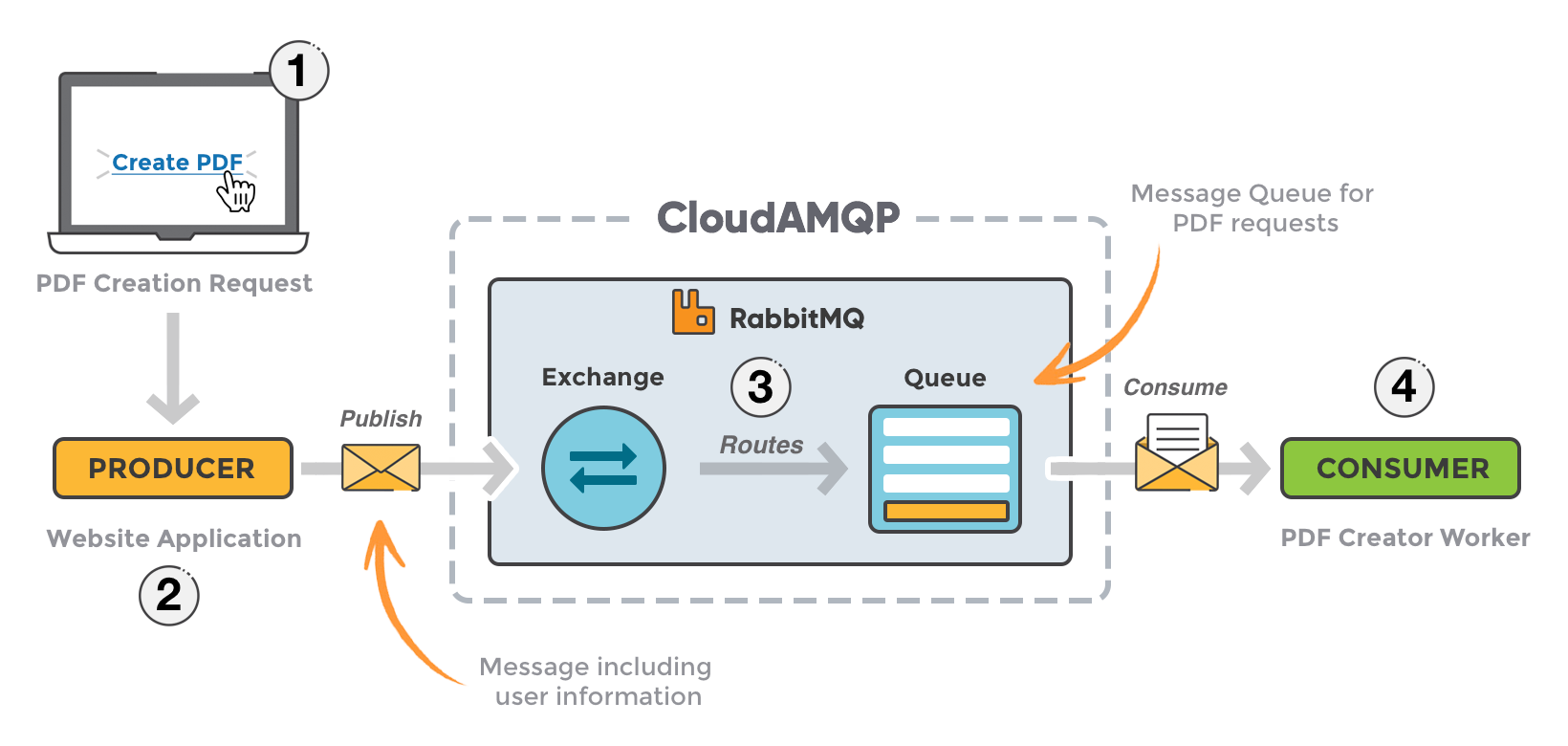
Behind every seamless AI interaction — a call answered in milliseconds, a payment confirmed, a calendar synced — lies a precise orchestration system processing 75 background jobs across 6 priority tiers. This is the engineering biography of how we designed and built it for yourang.ai.
yourang is an AI telephone agent that answers every call 24/7 — booking appointments, taking orders, and resolving support across clinics, restaurants, shops, real estate, utilities and more. Here's what it does, and how it's engineered.